16 WordPress Tips to Improve Your Website

Whether you’re managing a site for a client or your own business, these are some of the most common issues we see on WordPress sites and what you can do about them.

WordPress powers more than 40% of all websites on the internet, and for good reason. It’s flexible, extensible, and relatively easy to get started with. But that same flexibility means there’s a lot that can go wrong, and a lot that often does.

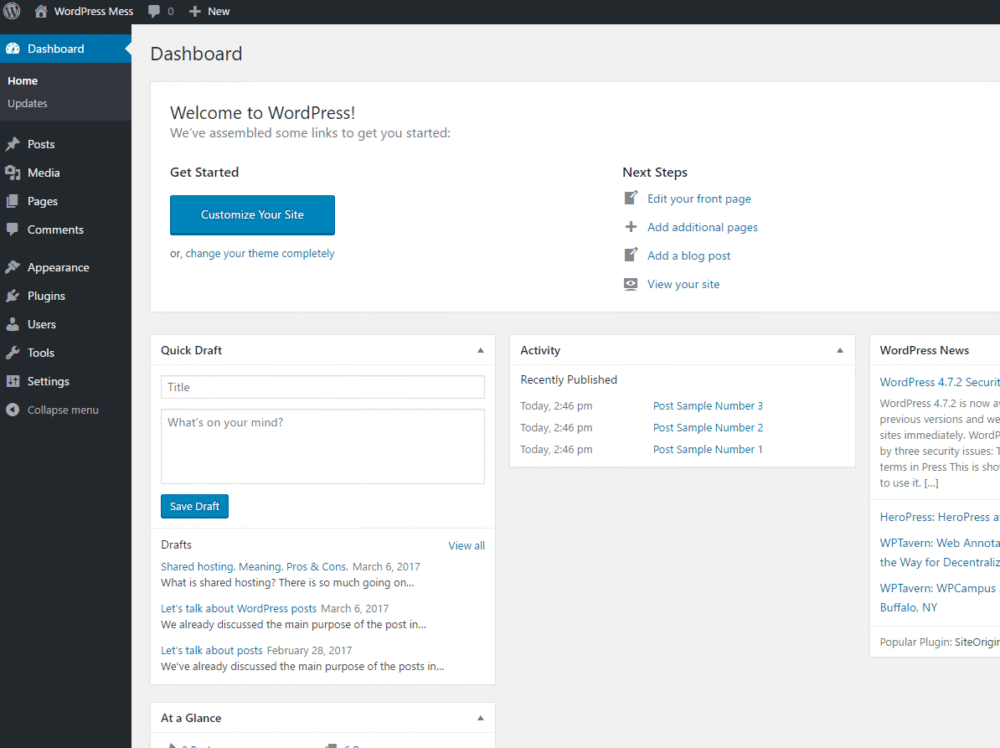
WordPress dashboard homepage showing site overview, activity, and quick draft panel. The starting point for fixing common WordPress problems.
The WordPress dashboard is where most maintenance, updates, and fixes for common problems begin.

1. Fix Broken Links

Broken links are one of those issues that quietly accumulate and do real damage. Pages get moved, URLs change, and external sites go offline. Every broken link is a dead end for a visitor and a signal to search engines that your site isn’t well maintained.

How to Fix

Run a link audit using a tool like Screaming Frog or the Broken Link Checker plugin. Set a reminder to do this at least quarterly. Internal broken links should be fixed with a redirect or by updating the link. External broken links should either be removed or replaced with a current alternative source.

Source: Thrive Agency – Common SEO Issues

2. Optimize and Downscale Large Images

Images account for the majority of a typical webpage’s total file size, and unoptimized images are one of the most common reasons WordPress sites load slowly. Uploading a 4MB photo straight from a camera when a 150KB compressed version would look identical is a performance problem that’s easy to avoid.

How to Fix

Compress images before uploading using a tool like TinyPNG or Squoosh. In WordPress, consider using the WebP format, which offers much better compression than JPEG or PNG. A plugin like Smush or ShortPixel can automatically compress new uploads and batch-optimize your existing media library.

Source: SE Ranking – 33+ Technical SEO Issues

Squoosh image compression tool showing before and after comparison with file size reduced by 98 percent
Compressing an image with Squoosh reduced this file size by 98%, from 3.06 MB down to 64.1 KB.

3. Add Missing Alt Text on Images

Around 74% of websites have images with missing alt text. Alt text serves two purposes: it helps screen readers describe images to visually impaired users, and it tells search engines what an image is about. Skipping it is a missed SEO opportunity and an accessibility failure.

How to Fix

Make it a habit to fill in the alt text field for every image you upload in WordPress. For existing images, a site audit tool like Semrush or SE Ranking can flag pages with missing alt attributes so you can go back and fill in the gaps.

Source: Medium / Ketan Kumar – Top SEO Issues 2025

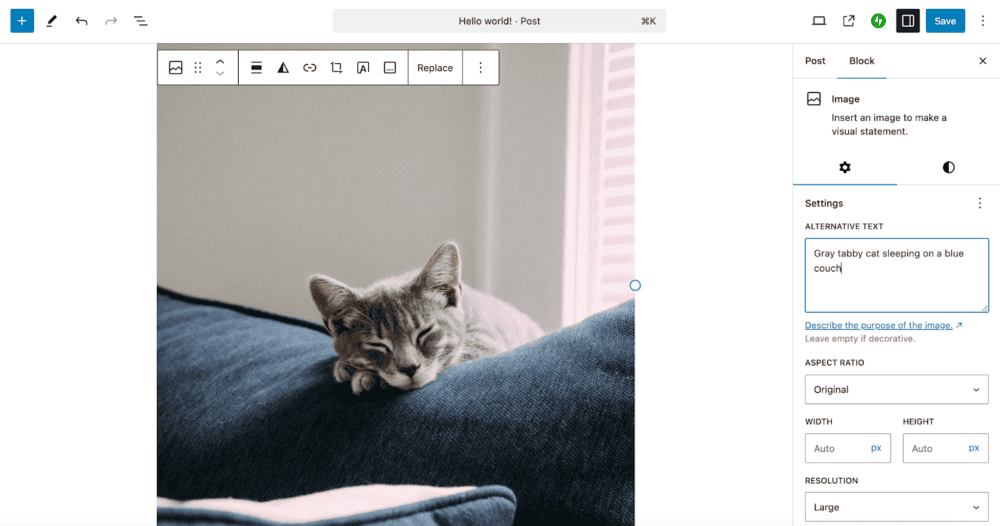
WordPress block editor showing the Alternative Text field filled in for an image
Adding alt text to an image in the WordPress block editor takes just a few seconds and helps both SEO and accessibility.

4. Improve Slow Page Load Speed

Site speed isn’t just a convenience issue; it directly affects your search rankings and your bottom line. Studies show bounce rates increase by 32% when load times reach 3 seconds and jump by 90% when load times go from 1 to 5 seconds. Slow WordPress sites are usually weighed down by unoptimized images, too many plugins, or low-quality hosting.

How to Fix

Start by running your site through Google PageSpeed Insights or GTmetrix. Common fixes include compressing images before upload, enabling browser caching, and switching to a faster hosting environment. Plugins like WP Rocket or Smush can also help automate a lot of this work.

Source: Hostinger – Website Load Time Statistics

5. Remove Plugin Conflicts

WordPress’s ecosystem of plugins is one of its greatest strengths, but it’s also one of its biggest sources of headaches. Plugin conflicts account for 65% of technical malfunctions on WordPress sites. Caching plugins, security plugins, and SEO plugins are especially prone to stepping on each other’s toes because they all modify core WordPress behavior.

How to Fix

If something breaks after installing or updating a plugin, deactivate all plugins and reactivate them one at a time until you find the culprit. Keep your plugin list lean, and before installing anything new, check that it’s been recently updated and is compatible with your current WordPress version. 

Source: Digidop – 10 WordPress Problems

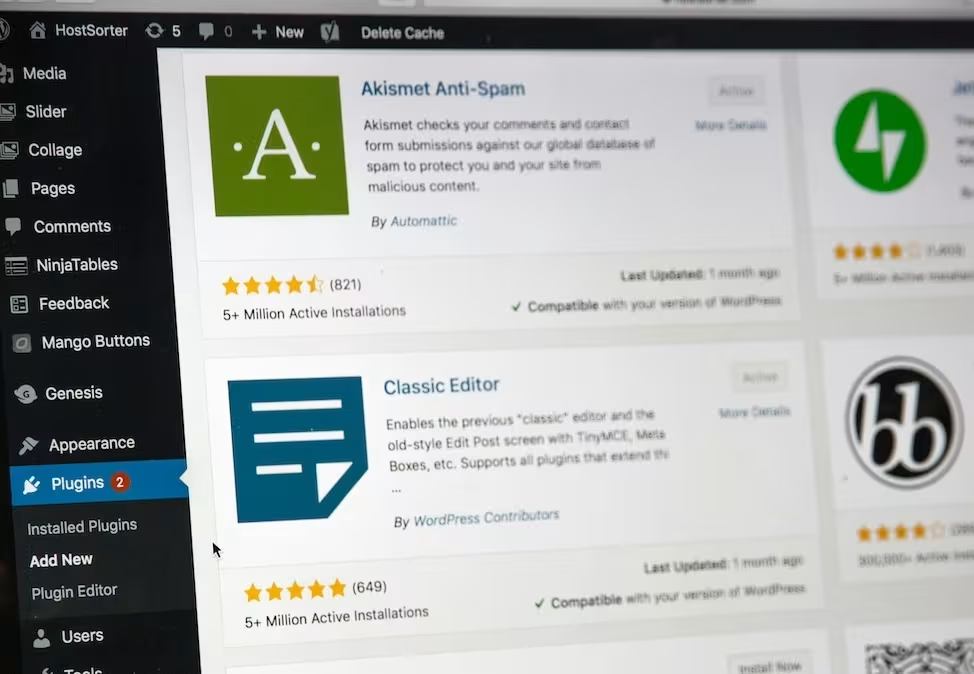
WordPress Add New Plugins screen showing Akismet and Classic Editor plugin listings
Every new plugin you install is a potential conflict. Choose actively maintained ones with strong compatibility ratings.

6. Strengthen Security Against Vulnerabilities and Attacks

WordPress sites are a popular target. The average WordPress site faces around 172 attack attempts per day, with brute force password attacks being the most common. Plugin vulnerabilities are another major entry point, with critical flaws regularly discovered in widely-used extensions.

How to Fix

Protect yourself by using strong, unique passwords, enabling two-factor authentication on your admin login, keeping all themes and plugins updated, and installing a reputable security plugin like Wordfence or Sucuri. Deleting unused plugins and themes is just as important as keeping the active ones up to date.

Source: Digidop – 10 WordPress Problems

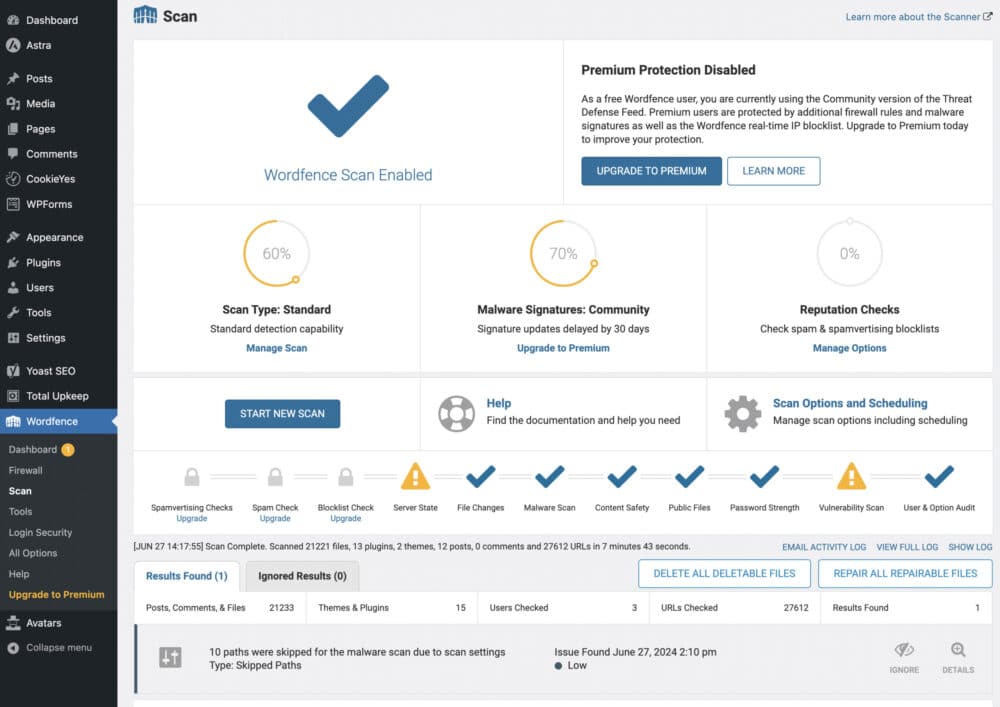
Wordfence Scan dashboard in WordPress showing completed security scan results and vulnerability checks
A completed Wordfence security scan showing vulnerability checks across files, themes, and plugins.

7. Fix Neglected Updates and Bloated Databases

It’s estimated that 90% of WordPress users neglect routine updates, and the effects compound over time. Outdated plugins and themes are the primary source of security vulnerabilities and compatibility problems. On top of that, old revisions, spam comments, and orphaned database tables from deactivated plugins can slow the site to a crawl.

How to Fix

Build a maintenance routine. Update WordPress core, plugins, and themes on a regular schedule, ideally after testing in a staging environment first. Use a plugin like WP-Optimize to clean up your database and remove the clutter that accumulates over time.

Source: Website Helper – Most Common WordPress Problems

8. Improve Poor Mobile Responsiveness

More than half of all web traffic comes from mobile devices, and Google’s mobile-first indexing means your mobile site is what Google actually evaluates when ranking your pages. A site that looks fine on a desktop but breaks or becomes difficult to use on a phone is a real liability.

How to Fix

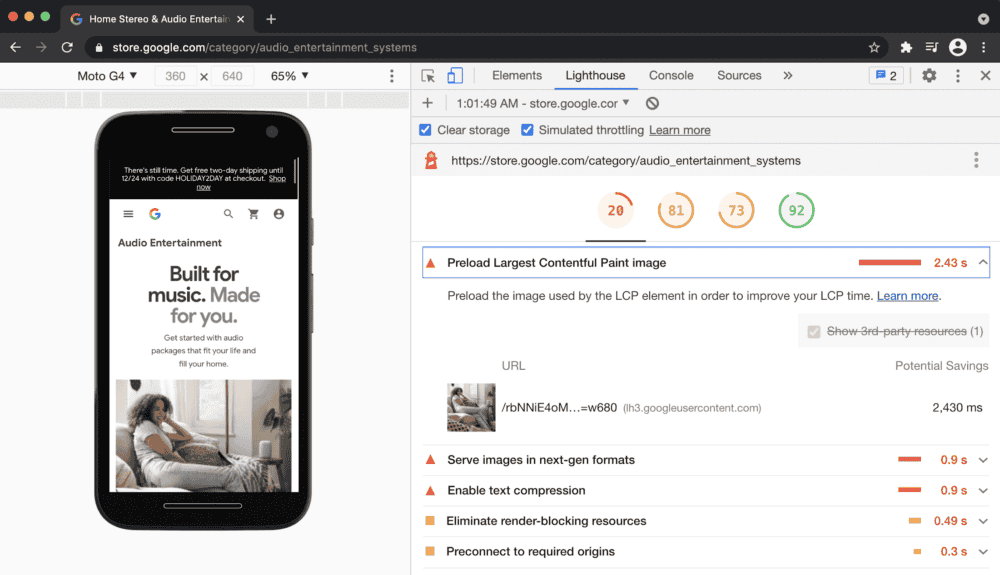
Test your site using Lighthouse and check it yourself on a variety of real devices. Common problems include text that’s too small to read, buttons placed too close together, and images that overflow their containers. Most modern WordPress themes handle this well, but custom CSS or older themes can introduce issues that need to be addressed manually.

Source: Delivered Social – Top Problems With Websites 2025

Testing mobile responsiveness in Chrome DevTools using Lighthouse and device emulation.

9. Eliminate Duplicate Content and Canonicalization Issues

WordPress can create duplicate content problems without anyone realizing it. Your site may be accessible at multiple URLs simultaneously, such as with and without “www,” or with and without “https.” Search engines may also index tag pages, category pages, and date archive pages that duplicate the same content in different wrappers.

How to Fix

Make sure you’ve set a canonical (preferred) URL in your WordPress settings and that your site redirects all variations to that URL. An SEO plugin like Yoast or Rank Math makes it easy to set canonical tags and control which pages get indexed. Check your Google Search Console for coverage issues that flag duplicate or alternate URLs.

Source: SEO Clarity – Common Technical SEO Issues

10. Correct SSL and HTTPS Issues

If your site is still running on HTTP instead of HTTPS, browsers like Chrome will display a “Not Secure” warning to visitors, which is bad for trust and bad for SEO. Even after installing an SSL certificate, “mixed content” errors can still appear if some resources, such as images or scripts, are still loading over HTTP.

How to Fix

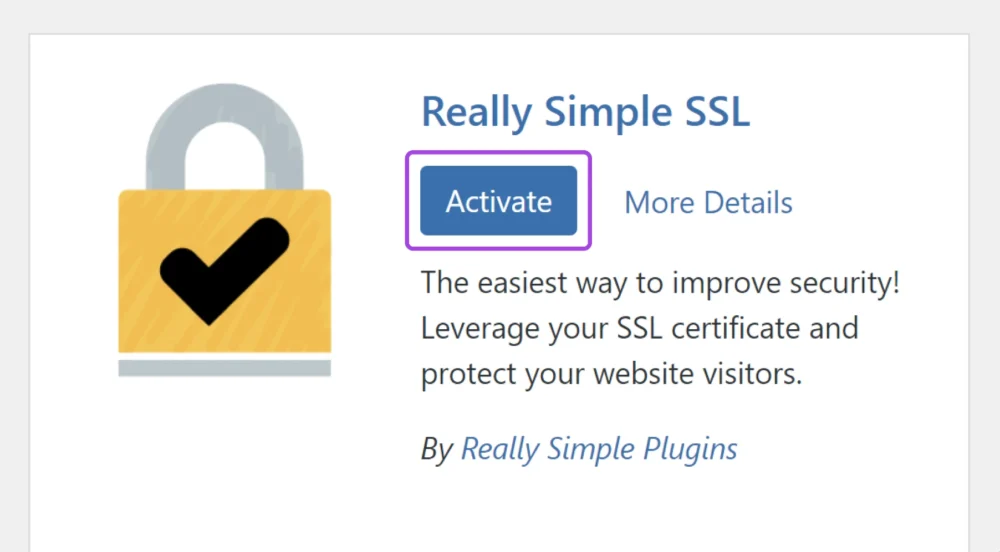
Make sure your SSL certificate is installed and properly configured. Use a plugin like Really Simple SSL to handle the transition from HTTP to HTTPS and catch any mixed content issues. In your WordPress settings, confirm that both the WordPress Address and Site Address fields begin with “https://”.

Source: WPBeginner – Common WordPress Errors

Really Simple SSL plugin activation screen with Activate button highlighted
Really Simple SSL helps resolve mixed content errors and keeps your site running securely over HTTPS.

11. Fix 500 Internal Server Errors

A 500 error is a catch-all server error that can mean several different things. On WordPress, the most common causes are a corrupted .htaccess file, an incompatible or buggy plugin, or a PHP memory limit that’s been exceeded.

How to Fix

Start by regenerating your .htaccess file. Go to Settings > Permalinks in your WordPress admin, then click Save Changes without changing anything. If that doesn’t fix it, deactivate all plugins and reactivate them one at a time to isolate the problem. If you’re still stuck, check with your hosting provider about increasing your PHP memory limit.

Source: Pronto Marketing – 10 Common WordPress Issues

12. Resolve Email Delivery Failures

WordPress uses PHP’s built-in mail() function to send emails by default, which many hosting servers aren’t configured to handle reliably. The result is that form submissions, password reset emails, and WooCommerce order confirmations either don’t send at all or end up in spam folders.

How to Fix

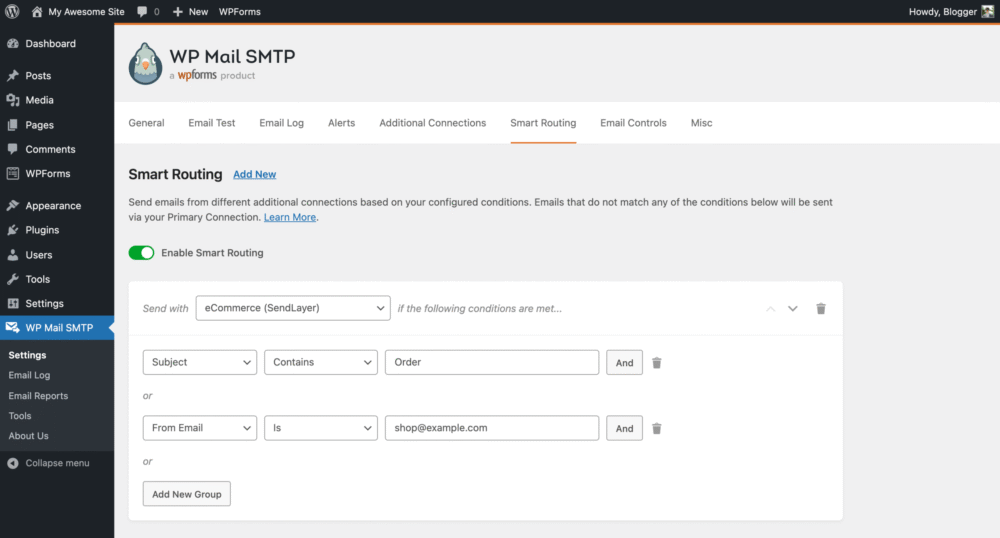
Configure WordPress to send email through SMTP instead. Install the WP Mail SMTP plugin and connect it to a transactional email service like Mailgun, SendGrid, or even a Gmail account. This makes authentication much more reliable and dramatically improves deliverability.

Source: Pronto Marketing – 10 Common WordPress Issues

WP Mail SMTP's Smart Routing feature lets you send emails through a reliable connection based on custom conditions.

13. Add a Backup Strategy

Most site owners don’t think about backups until they need one. By then it’s too late. A hacked site, a failed update, or a server crash can wipe out months of content and configuration with no way to recover if there’s no backup in place. The problem is compounded when backups are stored on the same server as the site itself, meaning a single failure takes both the site and the backup down together.

How to Fix

Set up automated daily backups using a plugin like UpdraftPlus or Jetpack Backup, and store copies in an external location such as Google Drive, Dropbox, or Amazon S3. Equally important: test your backups periodically. A backup you’ve never restored from is a backup you can’t trust. Restore to a staging environment once a month to confirm everything actually works.

Source: WebHostMost – WordPress Backup Strategy 2025

14. Hide wp-admin Login URL

Every WordPress site uses the same default login paths, /wp-login.php and /wp-admin, right out of the box. Since attackers know exactly where to look, automated bots constantly hammer these URLs with brute force attempts, cycling through username and password combinations around the clock. WordPress doesn’t limit login attempts by default, which makes this even easier to exploit.

How to Fix

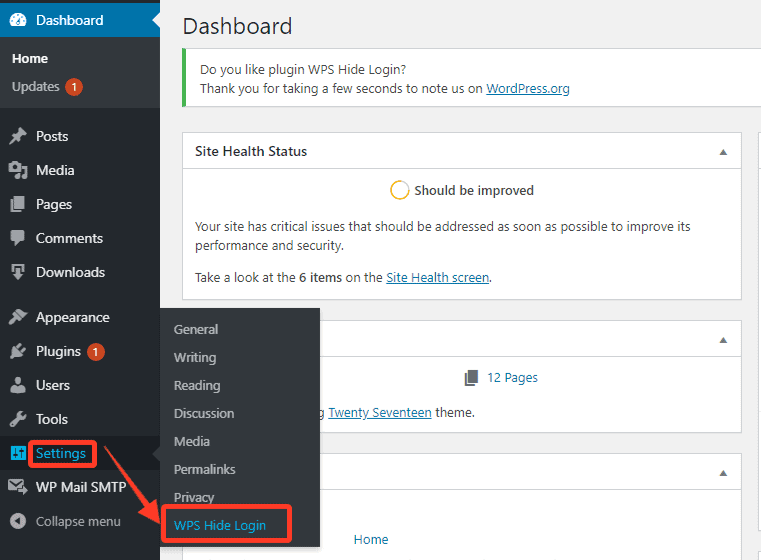
Changing the default login URL to something custom is one of the simplest and most effective steps you can take. The WPS Hide Login plugin handles this in minutes. Pair that with two-factor authentication, a login attempt limiter, and a security plugin that blocks repeat offenders, and you’ll cut the vast majority of automated attacks before they ever reach your login form.

Source: Sucuri Blog – Locking Down the WordPress Login Page

WordPress Settings menu showing navigation to WPS Hide Login plugin to change the default login URL
Changing your login URL with WPS Hide Login is one of the simplest ways to block automated login attempts.

15. Update PHP Version

WordPress runs on PHP, and the version of PHP your server uses matters significantly for both performance and security. Research shows that more than 70% of publicly accessible WordPress sites are running end-of-life PHP versions that no longer receive security patches. PHP 7.4, still one of the most common versions in use, has been unsupported since late 2022 and carries dozens of known, unpatched vulnerabilities.

How to Fix

Check your current PHP version under Tools > Site Health in your WordPress dashboard. If you’re on anything below PHP 8.2, it’s time to upgrade. Test the new version in a staging environment first, since some older plugins may have compatibility issues. Newer PHP versions also deliver real performance gains, with PHP 8.3 processing requests roughly 15% faster than 8.1.

Source: Cybernews – Most WordPress Sites Are Outdated

16. Protect Against Comment Spam

Spam bots constantly probe WordPress comment forms, flooding sites with low-quality links designed to manipulate search engine rankings or redirect visitors to malicious destinations. According to Wordfence, attacks targeting comment systems account for more than 35% of all automated attacks against WordPress. Beyond the obvious nuisance, spam comments that slip through can harm your SEO and, in serious cases, get your domain flagged or blacklisted.

How to Fix

Enable comment moderation in Settings > Discussion so comments require approval before going live. Install Akismet, which is free for non-commercial sites and catches the overwhelming majority of spam automatically. For heavier traffic, consider disabling comments entirely on pages where they add no value, or requiring users to be logged in before commenting. Disable trackbacks and pingbacks as well, since these are almost exclusively used by spammers.

Source: WP Rocket – How to Stop Spam Comments on WordPress

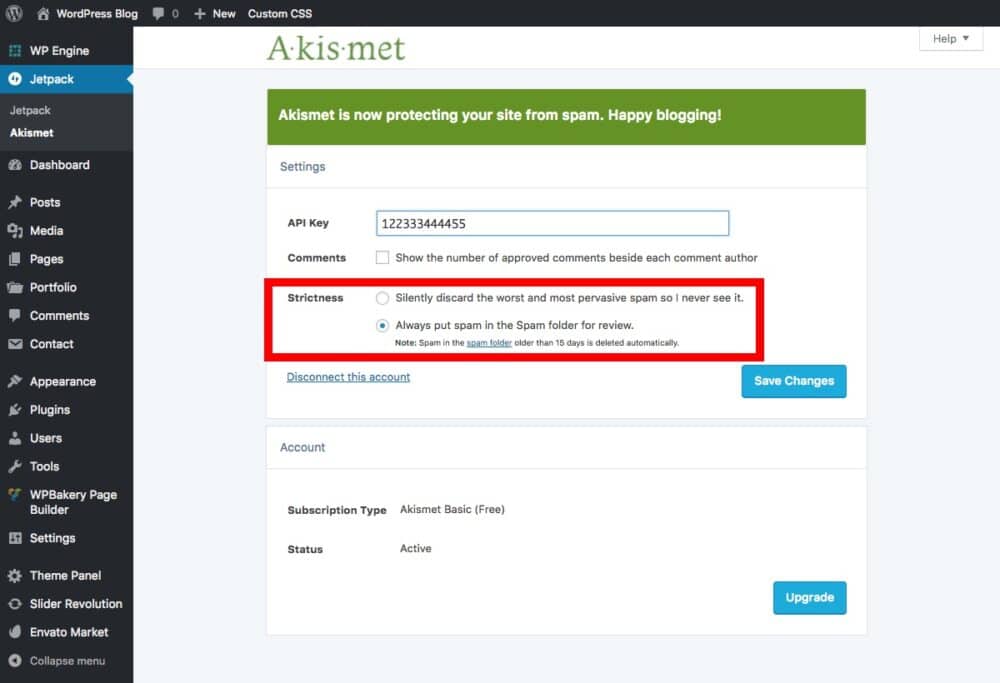
Akismet's spam filtering settings let you choose how strictly comment spam is caught and handled.

Your WordPress Website Can Work Better For Your Business

Most WordPress problems aren’t caused by WordPress itself. They’re caused by neglect: outdated plugins, ignored updates, unoptimized images, and a lack of routine maintenance. The good news is that nearly every issue on this list is preventable with a consistent maintenance habit.

If you’re not sure where your site stands, a technical audit is a great place to start. It can surface hidden issues before they become visible problems, and give you a clear roadmap for what to fix first.


Need help with your WordPress website?

The BizStream team works with organizations of all sizes to build, maintain, and optimize WordPress sites.

Featured Projects

Light Horse Therapeutics

A Clearer Identity for a Breakthrough Biotech Company
Branding // Design // Development // WordPress

Techno-Coat

Turning a Broken Website Into a Growth Engine
WordPress

20Fathoms

A New Look and New Voice for a Startup Hub
Content Strategy // Design // Development // WordPress

About the Author

Rex Rainey

Rex loves all things design but specializes in branding, web design, and illustration. He’s worked professionally as a designer, art director, and creative lead, at various interactive and branding agencies, since the mid-2000s. When not working, you can find Rex spending time with his family, watching the latest comic book movie/tv series, or deciding which sixth scale collectible he should purchase next.

Subscribe to Our Blog

Stay up to date on what BizStream is doing and keep in the loop on the latest in marketing & technology.